OneKeyJam
Become a master of playing complex chords by assigning them to a single note and triggering them with one finger. Jam (solo) over chord progressions in safety, because the notes that don’t fit are automatically filtered out. Import a MIDI file and OneKeyJam will find the chords inside it and lay them out across the keyboard so you can play along.
OneKeyJam is a browser-based MIDI app. Left-hand notes trigger whole chords with a single finger, and right-hand notes are snapped into the scale that fits the current chord, so everything you play sounds good. Change chord and the safe notes change with it. It can drive a real MIDI keyboard and DAW (for example Ableton), or make the sound in the browser.
Try it now at onekeyjam.netlify.app · source code on GitHub
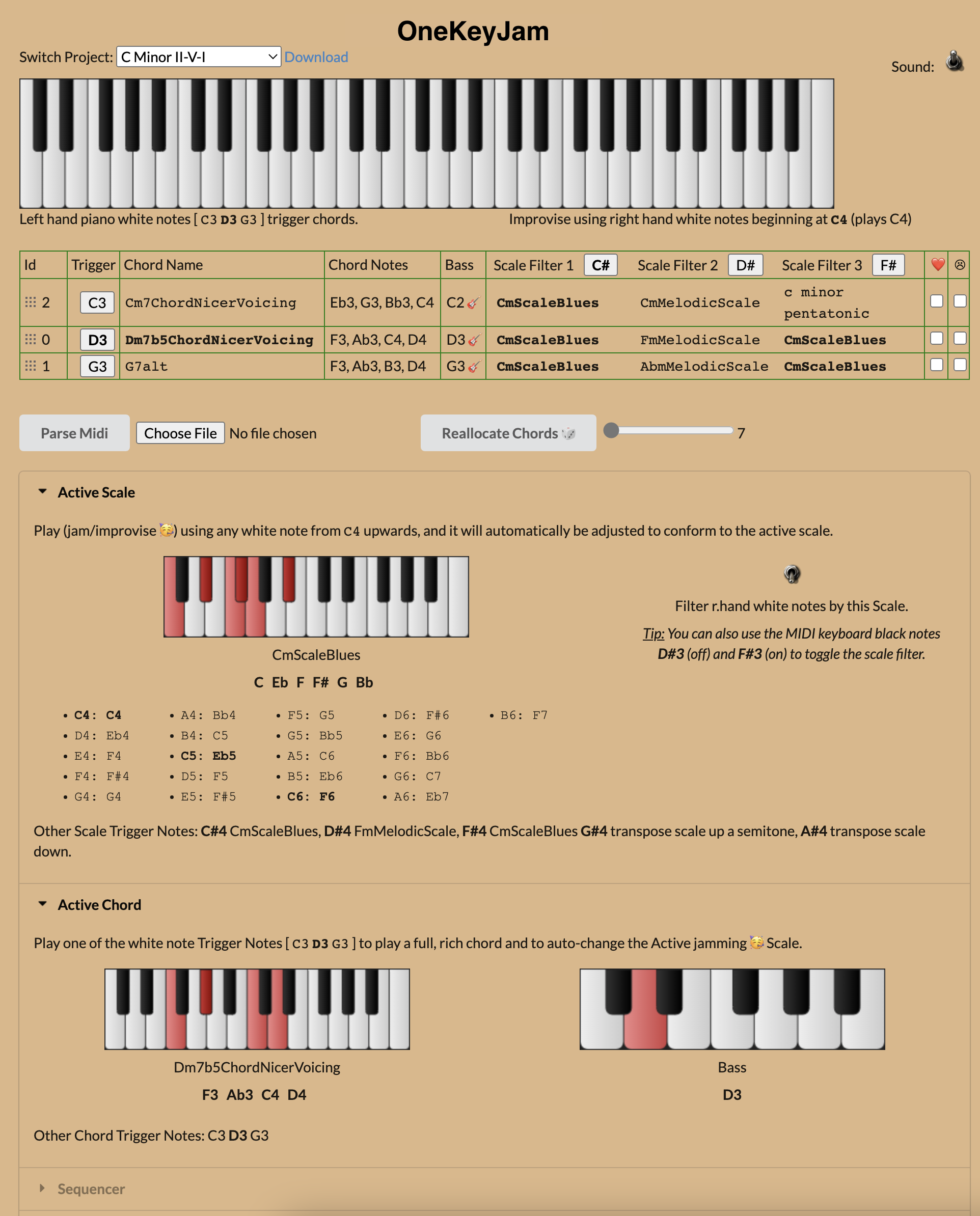
What is OneKeyJam?
OneKeyJam is a MIDI jam station built around one simple idea: you shouldn’t need to know how to play a chord to play it. Assign a chord to a single note, press that note, and the chord plays. Then noodle around on the right-hand side of the keyboard and jam over it. Notes that don’t belong are quietly filtered out, so you can’t hit a wrong note.
It’s a bit like the way a DAW plugin such as Cthulhu works, but in your browser and with no setup. It’s great for songwriting, for practising improvisation, and for exploring chord progressions you wouldn’t normally reach for.
Features
- Single-finger chords – each left-hand key plays a full chord from your project. No chord shapes to learn.
- Scale filtering – right-hand notes snap to the scale that fits the current chord, so improvisation always sounds right.
- Black-key modifiers – switch scale, transpose chords and turn filtering on or off while you play.
- Real MIDI, or built-in sounds – send notes to a DAW over the macOS IAC Driver (jam notes, chords and bass on separate channels), or use the bundled General MIDI sounds in the browser.
- Projects you control – configure chords and scales with JSON, save projects in your browser, and export or import them as files.
- Ready-made demo projects – open a featured project and start playing straight away.
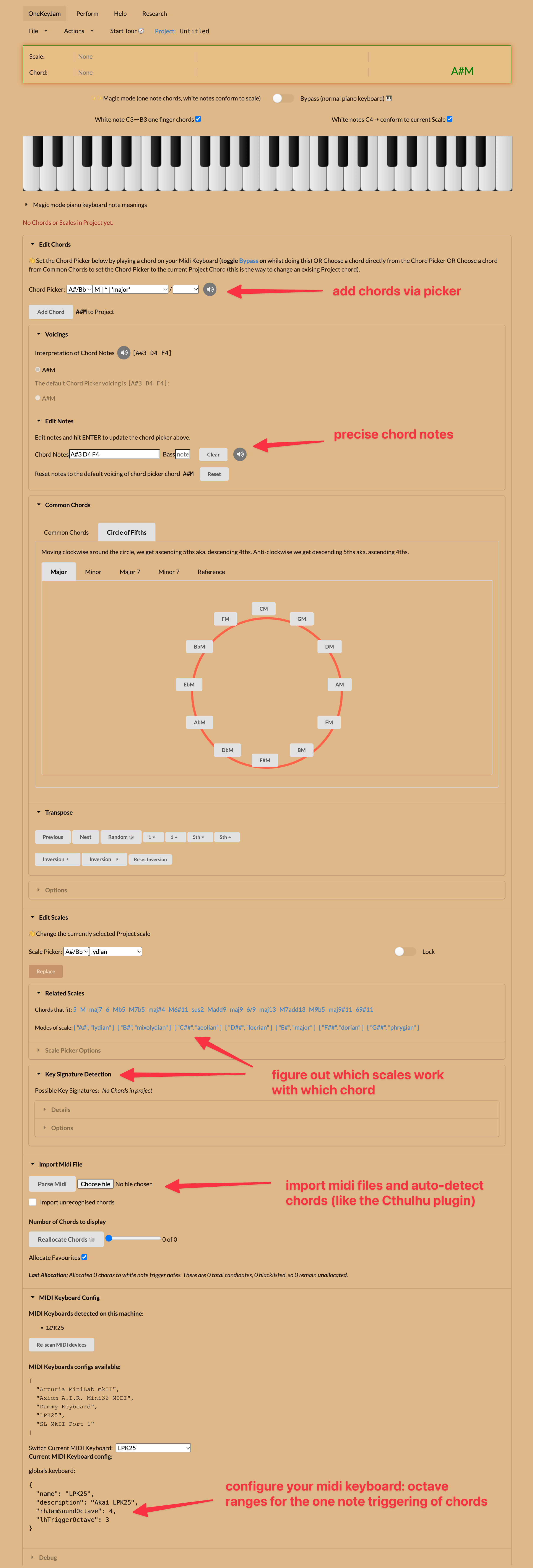
- Import MIDI files – load a MIDI file and OneKeyJam finds the chords inside it, then assigns them across the keyboard so you can trigger each chord with one note and jam over it in key.
Using the app
- Open the app and choose File → Open Featured… to load a demo project.
- Play the highlighted left-hand keys to trigger chords.
- Play anywhere to the right to jam – the notes are filtered to fit the chord.
- Use the black keys to switch scale or transpose.
A guided tour is available from the Start Tour item in the menu. To build a project from an existing MIDI file, choose File → Import MIDI file… and OneKeyJam will detect the chords and lay them out on the keyboard.
Screenshots
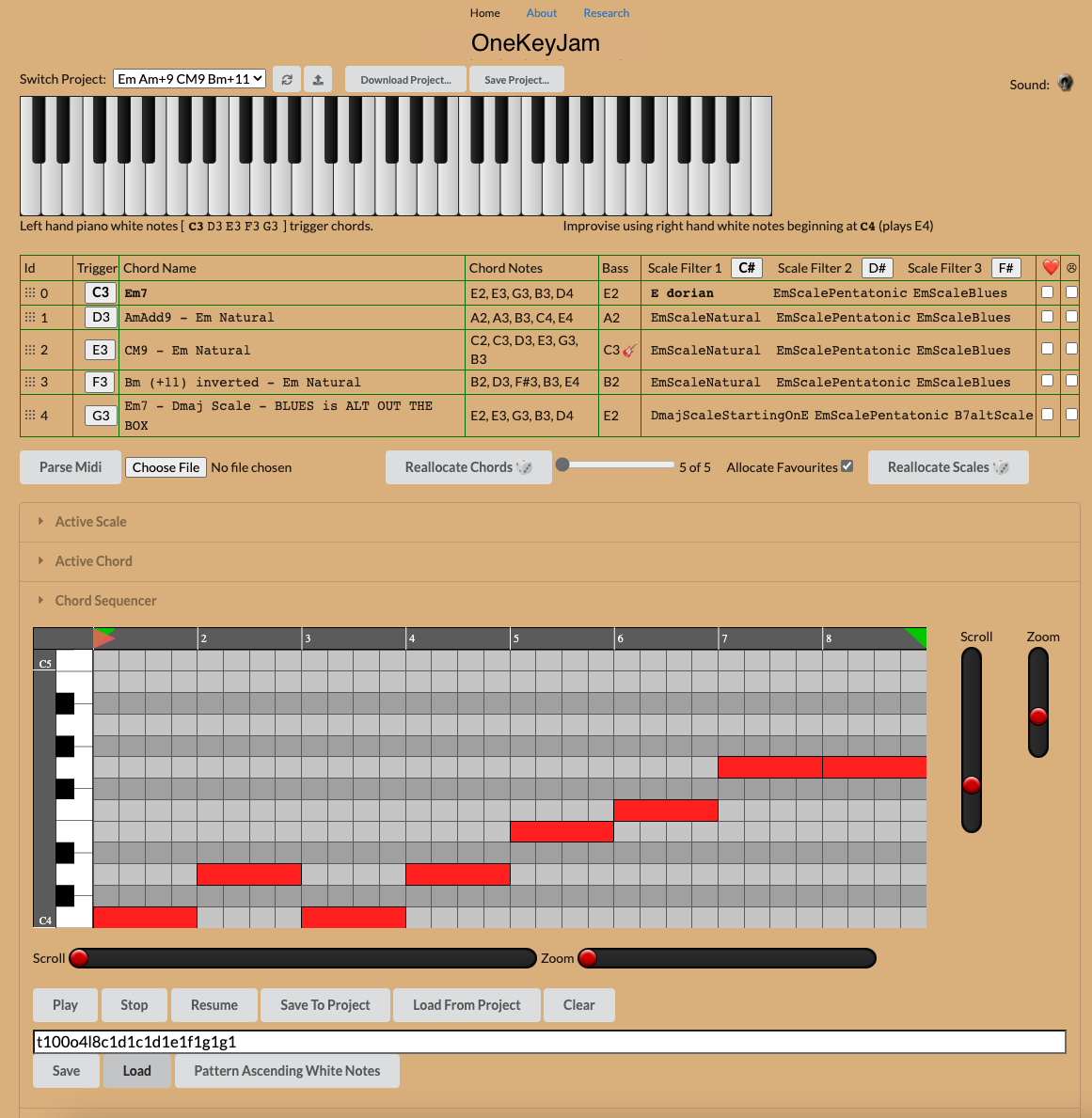
The perform view shows your chord table, with each chord mapped to a single left-hand trigger note, and a built-in sequencer where you can capture both the left-hand chords and the right-hand jam notes on separate tracks:
The edit view is where you build projects. Pick chords from the circle of fifths, see which scales fit each chord, and import a MIDI file to auto-detect its chords:
Use a real MIDI keyboard
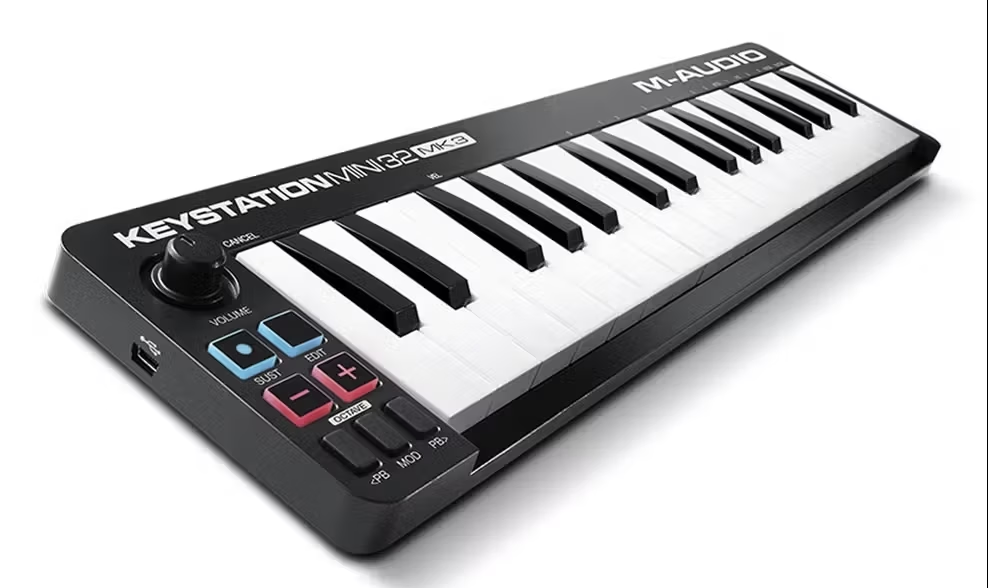
Plug in a MIDI keyboard and Chrome connects to it automatically through the built-in Web MIDI support – no setup needed. Sound is made in the browser out of the box, and you can also route notes to a DAW or synth such as Ableton via the macOS IAC Driver.
MIDI needs a secure context, so the page must be served over HTTPS (or localhost). To send notes to Ableton (or another DAW) over the IAC Driver:
- enable the IAC Driver in macOS Audio MIDI Setup
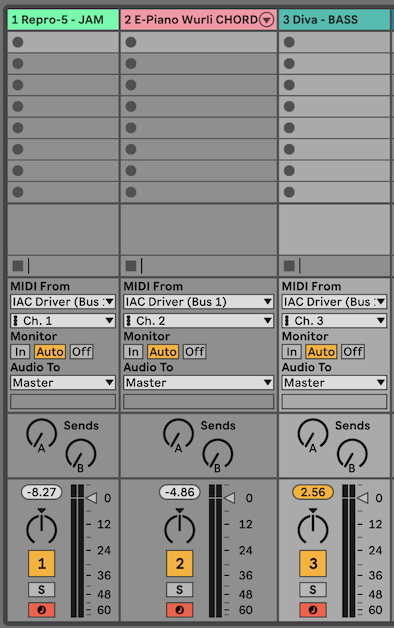
- in Ableton, add a track with a synth that listens on the IAC Driver MIDI input, and use separate channels for each part:
| Channel | Part |
|---|---|
| 1 | right-hand jam notes |
| 2 | chords |
| 3 | bass |
How single-finger chords work
Each entry in a project maps one left-hand trigger note to a chord and a set of scales to jam with. With the demo project:
- Play
C3to trigger theEm7chord and jam inE dorian - Play
D3to triggerAmAdd9and jam inEmScaleNatural - Play
E3to triggerCM9and jam inEmScaleNatural - Play
F3to triggerBm(+11)and jam inEmScaleNatural
Jamming notes are G3 to C5 and are filtered to be in the default scale for the current chord.
Switching scale while you play
The black keys in the left-hand octave are modifiers. While you hold a chord, the right-hand black keys switch the jam scale or transpose it:
C#– default scale (scale1in the config)D#– second scale (scale2)F#– third scale (scale3)G#– transpose the jam scaleA#– transpose the jam scale the other way
Left-hand black key modifiers
The left-hand black keys act on the chord itself, with C# behaving like a SHIFT key:
C#hold down to engage SHIFT modeD#turn scale filtering offF#turn scale filtering onG#transpose the chord down a semitoneA#transpose the chord up a semitone- SHIFT
D#stop all notes - SHIFT
F#toggle sticky scale filtering
Project config
Projects are plain JSON, so you can hand-write them, save them in the browser, or export and import them as files. A chord entry looks like this:
{
  "name": "Em Am+9 CM9 Bm+11",
  "chords": [
    {
      "id": 1,
      "name": "Em7",
      "chord": "Em7",
      "chordNotes": ["E3", "G3", "B3", "D4"],
      "scale1": "E dorian",
      "scale2": "E major pentatonic",
      "scale3": "E minor blues",
      "bassNote": "E2"
    },
    {
      "id": 2,
      "name": "AmAdd9",
      "chord": "AmAdd9",
      "chordNotes": ["A3", "C4", "E4", "B4"],
      "scale1": "E minor natural",
      "scale2": "E minor pentatonic",
      "scale3": "E minor blues",
      "bassNote": "A2"
    }
  ]
}
The app validates project and keyboard JSON against schemas, so you get useful errors if something doesn’t look right.
Technologies
| Description | Technology |
|---|---|
| Framework | Vue 3 with Vite |
| MIDI | WebMidi.js |
| MIDI file import | @tonejs/midi |
| Scales and chords | tonaljs – a functional music theory library for JavaScript |
| Built-in sounds | soundfont-player |
| Styling | Tailwind CSS |
Source and feedback
OneKeyJam is free and open source – the code lives at github.com/abulka/onekeyjam. Bug reports and feature requests are welcome in the issue tracker.
I’d also love to hear how you use it. Send me an email at abulka@gmail.com.